Easter Gifts at Chocolate.com

Thursday, October 21, 2010

The First and the Second Video on YouTube

Brief information of YouTube
YouTube history, events, statisctics

Five years ago in 2005, a site with the domain name www.youtube.com was activated on February 14. At that time, no one can image that this site will become the largest video site and the second biggest site in the world.

However, the first video on YouTube was not posted on Februarty 14, 2005. It was posted on April 23, 2005, at 8:27 PM on Saturday, with the title 'Me at the zoo' showing one of the YouTube founder Jawed Karim at San Diego zoo. The video was shot by Yakov Lapitsky and is only 19 seconds long. This video still can be viewed on YouTube. UP to now, this video has been viewed 3,715,026 times and has 23,050 comments. Here is the video -


This video looks common, but it opens a new era to online video. By July 2006, this site had 100 million video views and 65,000 video uploads per day. In October the same year, Google acquired YouTube for $1.65 billion – what fast-moving things they are in the Internet age!

Now you know the first video on YouTube is 'Me at the zoo', by the way, where the second YouTube video ever is?

The second video ever on YouTube is far less famous compare with the first one. It is titled 'My Snowboarding Skillz', also posted on April 23, 2005, and has only 26, 363 views and 314 comments. You can view it below -


Tip
: You can use Leawo Free YouTube Downloader to download the above two YouTube videos to your computer hard drive for off-line viewing. Leawo Free YouTube Downloader is a free YouTube video downloader that can download and convert videos from YouTube and other websites. This is its user guide.

Wednesday, October 20, 2010

Record, Extract, or Rip Audio / MP3 from YouTube Video

Looking for a song, but can't find it on the Internet, but it is on YouTube, but you don't know how to get it in MP3 format? Want to get a song from YouTube video as a ringtone for your cell phone? Want movie dialogues in MP3 format? No problem, a lot of YouTube downloading and converting websites offer us the service for extracting audio from YouTube video, such as vixy. But these sites often cause some problems. A lot of them are not working, what's worse, they will bring virus to your computer.

I will recommend desktop-based software. My favorite is Leawo Free YouTube Downloader. It's not only a YouTube video downloader, it's also a web browser, a FLV player, a video accelerator that can accelerate the loading speed of online video, and supports Flash video conversion. What's more, it can get MP3 audio file from YouTube video. Not only YouTube, but it can also download videos from other websites. I have it on my laptop and I use it frequently.

In my older post, I introduced how to use Leawo Free YouTube Downloader to download online videos. In this post, I'm going to guide you how to use it to extract audio from online YouTube video. No need to copy any URL, all process are automatic.
Note: This program only works on Windows OS.

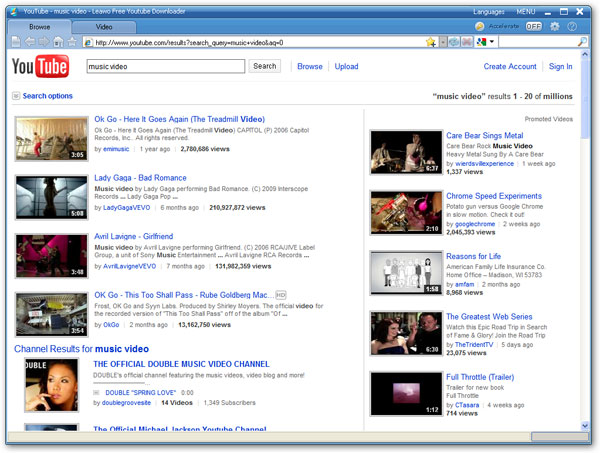
The frist thing is to install Leawo Free YouTube Downloader in your computer. Launch it, open YouTube.com in the browser in this program, go to the video that contains your desired audio content and play the video. The program will automatically begins to download the YouTube video.

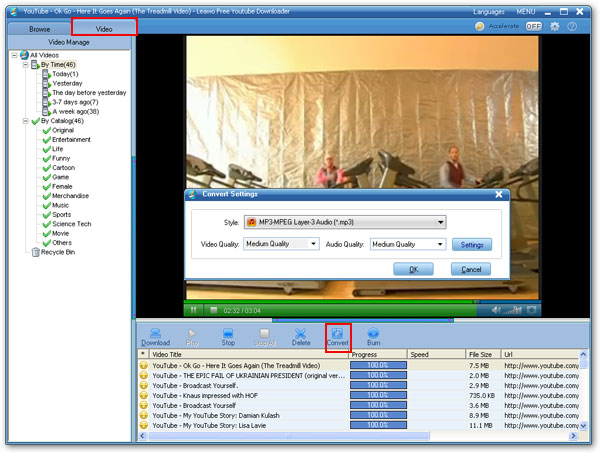
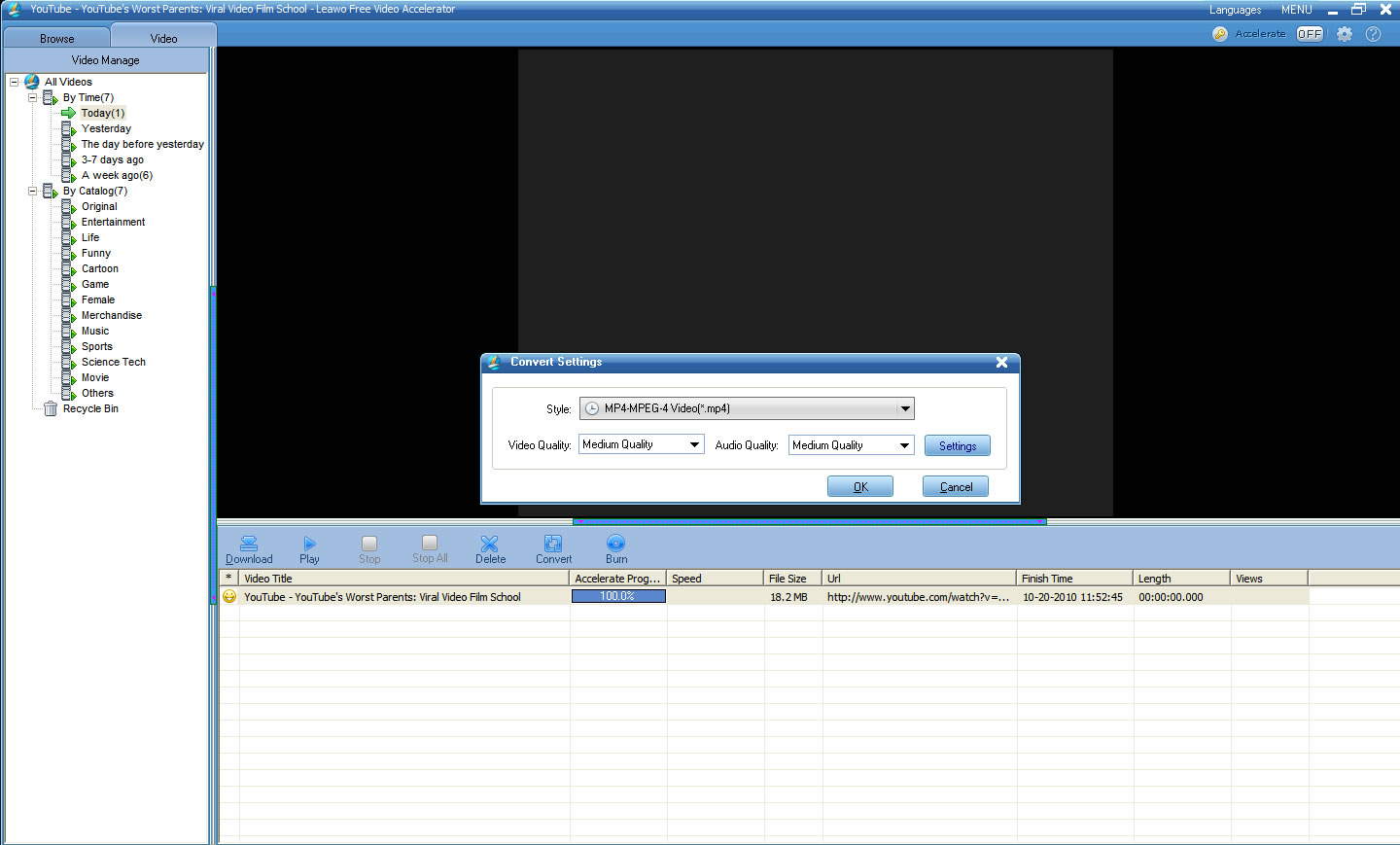
You can switch to the 'Video' tab to check the downloading progress, when the downloading progress completes, indicated by a yellow smiling face icon, click the 'Convert' button, a 'Convert Settings' window will pop up, in this small window, choose MP3 as target file format and click 'OK'.

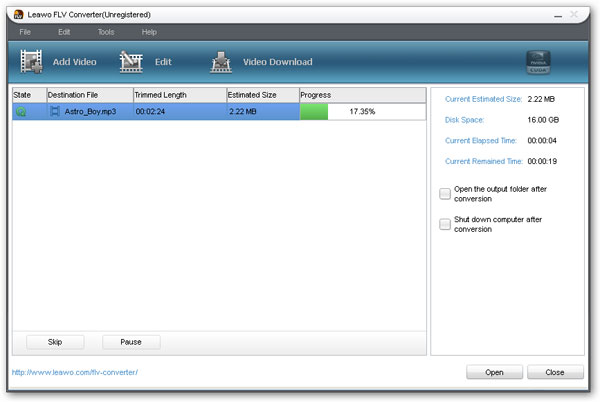
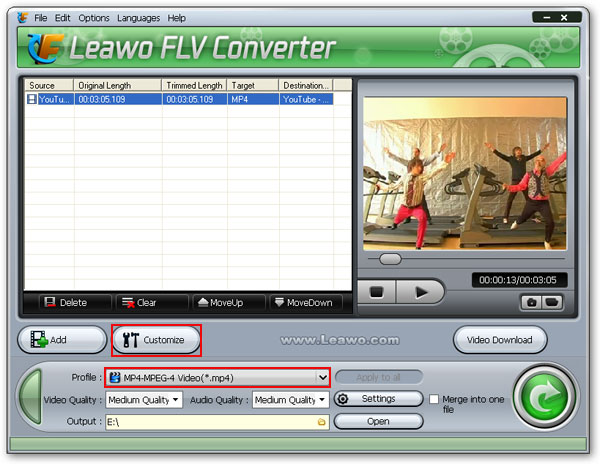
Leawo FLV Converter will be invoked immediately, select MP3 as the target audio format, click the big Convert button to start the conversion, a moment later the MP3 audio file will be saved in your computer desired folder.


Tuesday, October 19, 2010

Download and Import YouTube video to iMovie

Just image that if you have no other tool, how do you get a video from youtube and add it to iMovie on Mac? It's impossible. Because YouTube doesn't tell us a way to download video from its own site. What's more, YouTube video is usually FLV format, which is not an iMovie friendly format. Video formats accepted by iMovie include MPEG-2 and AVCHD, DV-Standard and HDV (High Definition Video), QuickTime Movie, MEPG-4 and H.264 formats. So you can't open YouTube video in iMovie.

It becomes very easy to do that if you have Leawo Free YouTube Downloader. As you can use this software to download and convert YouTube video for iMovie. The below tutorial is going to show you how to do that with Leawo Free YouTube Downloader.
Note: Leawo Free YouTube Downloader can only be used on Windows OS.

There are two aspects for this tutorial:
A. Download and convert YouTube video to MP4 for iMovie.
B. Import the converted YouTube video to iMovie.

Now let's begin.

A. Download and convert YouTube video to MP4 for iMovie.

On Windows computer, there are two ways to download YouTube video with Leawo Free YouTube Downloader.

The 1st way:
Open the program and type www.youtube.com in the address bar.
Drag the video thumbnail to the hover window of the program.

The 2nd way:
Open the program and type www.youtube.com in the address bar.
Choose a video to play and click 'Video' tab to watch and check the downloading progress at the same time.
Click 'Download' button to download YouTube video to your PC when the downloading progress completes.
Check How to download YouTube video for more details using the above two ways.

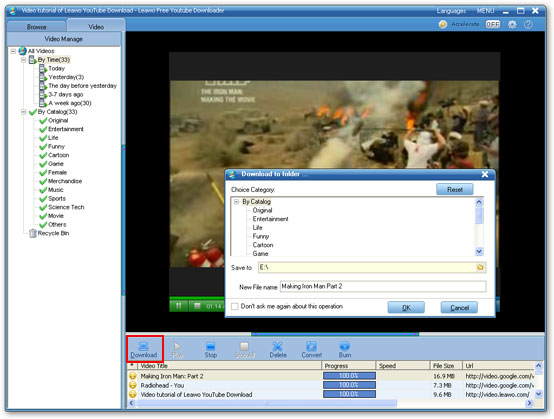
When the downloading completes, indicated by a yellow face icon, click 'Download' button to save the downloaded YouTube video to your computer hard drive. A green tick icon will appear when the saving process is finished.

Click 'Convert' button, a small window will pop up, here select MP4 as target format, click 'OK' to convert the downloaded YouTube video to MP4 for iMovie.

Leawo Free FLV Converter will be invoked now. Select MP4 as the target video format and click the green button to convert YouTube video to MP4 immediately.

B. Import the converted YouTube video to iMovie.

On Mac, launch iMovie, click the 'File' menu, choose the 'Import' submenu from the drop download list, then click 'Movies…' to navigate the program to import the converted YouTube video to iMovie, now you can enjoy the fun of making your own movie.

Related tutorial: How to Download and Import YouTube video to Windows Movie Maker

Monday, October 18, 2010

How to Download YouTube Video and Import It to Windows Movie Maker

I want to download a video from YouTube to Windows Movie Maker to add some visual effects to the YouTube video. So I download YouTube video to my computer hard drive first, and then drag it to Windows Movie Maker. But it doesn't work. Windows Movie Maker can't open the video file.

If you experience this, you should read this post as it shows how to do this correctly step by step.

Before tutorial started, there is something you need to know.

Accepted media formats for import in Windows Movie Maker:
Video files: .asf, .avi, .wmv, MPEG1, .mpeg, .mpg, .mlv, .mp2, .wm
Audio files: .mp3, .wav, .wma, .snd, .au, .aif, .aifc, .aiff

Importing of other container formats such as MP4/3GP, FLV and MOV, MIDI, AIFF, AAC and SWF are not supported even if the necessary DirectShow decoders are installed. The downloaded YouTube video file is FLV or MP4 format. That's the reason why you can't directly put YouTube video to Windows Movie Maker.

You should download and convert YouTube video to Windows Movie Maker accepted format and then import the converted YouTube video to Windos Movie Maker.

Below tutorial shows you how to do this in two steps.

Step 1. Download and convert video from YouTube for Windows Movie Maker.

Generally speaking, you need a YouTube video downloader and a video converter. You can use Leawo Free YouTube Downloader. It can download and convert YouTube video in one software.
There are two ways to download YouTube video with Leawo Free YouTube Downlaoder.

Method 1:
Open the program and type www.youtube.com in the address bar.
Drag the video thumbnail to the hover window of the program.

Method 2:
Open the program and type www.youtube.com in the address bar.
Choose a video to play and click 'Video' tab to watch and check the downloading progress at the same time.
Click 'Download' button to download YouTube video to your PC when the downloading progress completes.
Check How to download YouTube video for more details using the above two methods.

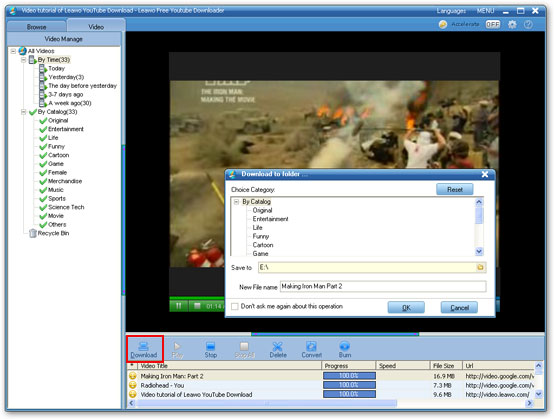
When the downloading completes in Leawo Free YouTube Downloader, indicated by a yellow smiley, click 'Download' button to save the downloaded YouTube video to the appointed folder on your PC. A green tick will appear when the saving process is finished.

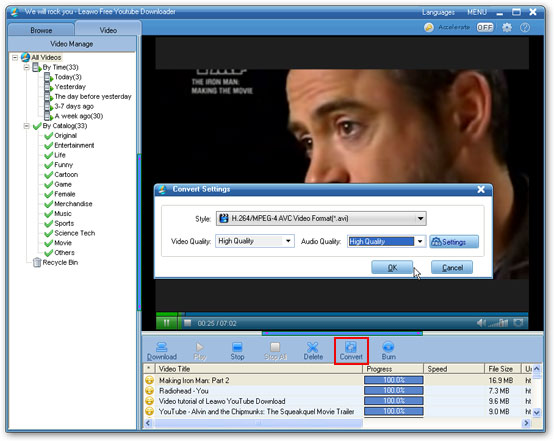
Then click 'Convert' button to convert the downloaded YouTube video to AVI for Windows Movie Maker.

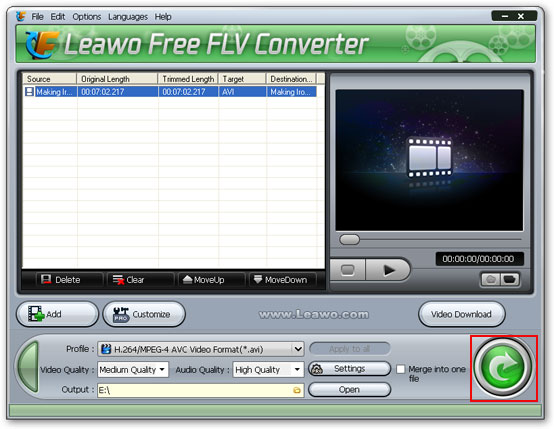
Leawo Free FLV Converter will be invoked now. Select AVI as the target video format and click the green button to convert YouTube video to AVI immediately.

Step 2. Import the converted YouTube video to Windows Movie Maker.

Now you get the converted YouTube video supported by Windows Movie Maker, you can import the converted YouTube video to movie maker.
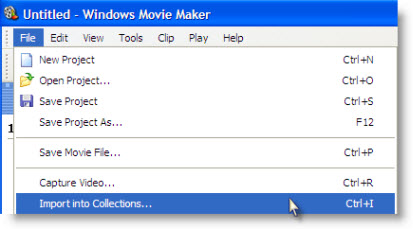
Click the 'File' menu, then choose 'Import into collections' from the dropdown list, a window will pop up, in this window, navigate to the converted YouTube video in your hard drive, then double click on the file. Now you can see the YouTube video is in the Windows Movie Maker 'Collections'. Done!
Sunday, October 17, 2010

How to Optimize YouTube Video Ranking - Factors and Optimization Methods


Part Two – Video Ranking Optimization Methods


In my last post about video ranking optimization, I listed the factors that influence the video ranking in YouTube and Google organic search results. This post is going to tell you the things you need to do to get high ranking for your video.

1. Analyze and Identify Keywords
It is very important to compare different keywords before picking up your own keywords. Free tools you can use are Google Trends and Google Insights for Search; both of them are helpful to provide you the world's hot searches. Note that it is very difficult to get high ranking for some very popular searches terms which are highly competitive, you'd better to find a niche and the more complex keywords that go with long tail campaigns. After that you need to add you keywords to your text, such as title and description, but don't stuff too many keywords in the text.

2. Views, Ratings and Comments
The more of these your video has, the better for your videos ranking.

3. Backlinks building
Backlinks, also called incoming links, are the links that link back to your video page. Backlinks building is very important in SEO, and also very important for your video ranking. The more backlinks your video page has, the better for its ranking.
There are a lot of ways to get backlinks, such as link exchange, article submission, forum posting, blog comments, social websites links, etc. Revelant niche backlinks are highly recommended. Be careful not to spam, and use your keywords in the anchor text of the backlinks.

4. More exposure
Submit your video to as many free resources sites as possible, provided they link back to the YouTube page. The embed button also allows you to have your video shared on websites. The more exposure and the more websites share your video, the video is on the higher it will rank.

5. YouTube Interaction
Once your video is out there, interact on YouTube by watching other videos, commenting, subscribing, creating channels, and making friends. Interaction helps with the viral marketing, where one person tells another person about the video.

6. Transcripts
Include a transcript of the video as this will give the search engines information about your video. This will give your video text for the search engines to analyze and interpret. It also helps for accessibility issues.

7. RSS Feeds
Search engines' spiders like to crawl and index RSS feed. So it's good to create an RSS feed for your video page from RSS services websites such as FeedBurner.
You can then use services to ping your videos RSS feed, giving the video exposure across a variety of social networking and bookmarking sites within minutes.


(Off topic: You can use Leawo Free YouTube Downloader to legally download YouTube videos to your computer. It is free. It also can accelerate the loading speed of online video so that you can view online video smoothly. This is its user guide.)

Thursday, October 14, 2010

How to Become a YouTube Partner (Part Three) - Qualifications & FAQ

How to Become a YouTube Partner (Part One) - Benefits of YouTube Partner
How to Become a YouTube Partner Part Two - YouTube Rental Beta


(Off topic:

Leawo Free YouTube Downloader is an all-in-one YouTube downloader and is free. It can perfectly download all YouTube videos and web videos from other video sharing website, it also can convert the downloaded videos to other video formats.

Besides, it can rip audio from the downloaded video so that you can download music from videos - http://www.leawo.com/flash/download-flv-youtube-mp3.html

It is one of the best and safest YouTube downloader I have ever used. This is tutorial - http://www.leawo.com/youtube-download/user-guide.html )

Qualifications

To become a YouTube partner, you need to meet the following requirement:
  • You're able to create original video suitable for online video broadcasting and streaming.
  • You own the right or have express permission to use and broadcast all the music or video you upload. Exceptions are not allowed.
  • You regualarly upload videos that are viewed by thousands of YouTube users, or publish popular or commercially successful videos in other ways (such as DVDs sold online).

Meet the above requirements? If yes, Apply Now!

Note: all uploaded videos to YouTube are subject to the YouTube Community Guidelines and Terms of Use.

FAQ

What are the benefits to become a YouTube partner?
You can go to this post to learn more.

How long does it take for the partner application?
Due to the large volume of applications YouTube receives which requires screening, it's unable to offer a time estimate on when your application will be processed.
You will need either an approved AdSense account (for ad-supported content) or a Google Checkout business account (for rental content). If you know which type of content you would like to offer, you can set those accounts up in advance of your partnership approval.

Does a cover song classify as an original music video?
YouTube currently does not allow videos of artists singing cover songs into their partner program unless the artist has obtained full synchronization and performance rights. Cover songs are performances of songs that were previously recorded or commercially released by someone else.

Do YouTube accept audio as part of the program?
No, at this time YouTube accepts music video submissions only.

What type of ads will run on my content?
If you choose ad-supported videos, the ads are chosen automatically by YouTube's system, based on a number of contextual factors such as video category. If you choose streaming rentals, no ads will be shown.

Wednesday, October 13, 2010

Optimize YouTube Video Ranking - Factors and Optimization Methods

Part One - Factors

If you have uploaded video to YouTube, I'm sure you want your video get more view count. The question is: How to get more views? Is there any trick to push up my video on YouTube?

A good way to get more views for your video is to improve your video ranking on YouTube. Moreover, Google search engine indexes YouTube video pages, this means your video is possible to show in Google's organic search results.

(Off topic: You can use Leawo Free YouTube Downloader to legally download YouTube videos to your computer. It is free. It also can accelerate the loading speed of online video so that you can view online video smoothly. This is its user guide.)

Currently, there are two good ways to improve your video popularity. The first one is to optimize the video ranking in within YouTube; and the second way is to get a high ranking in Google's organic search results for your video page.

It is not an easy task, and will not be accomplished overnight. To do that, there are certain rules and basic approaches you need to know and keep in mind.

Factors that influence video ranking in YouTube

To improve ranking, we need to make clear that what influence the video ranking. We all know that there are 4 ways to sort the the video results on YouTube while we're searching video; these 4 ways are Relevance, Date Added, View Count, and Rating, which is a part of factors that influence video ranking in YouTube. In addition, according to YouTube guidelines there are more factors that influence video ranking. In general, the factors that influence the video ranking are listed below, you ought to be clear each of them.

  • Video title
  • Description
  • Tags
  • Incoming links
  • Comments
  • Subscribers
  • Ratings
  • Playlist additions
  • Flagging
  • Embeds
  • Shares
  • Age of video
  • Views
  • Channel views

Just like when optimizing a web page ranking, you need to focus on the text surrounding your video to make sure that it contains your most important keywords with the right keyword density. It also needs a certain amount of quality web pages that embed or link back to your video.

Part Two – Video Ranking Optimization Methods